
How to Get SignIn with LinkedIn to work
📅 January 10, 2021
•⏱️4 min read
I will walk you through some examples of how you can enable LinkedIn sign in through your developer app and use the LinkedIn API access token to get information about your profile.
Before going into authentication, make sure that you have the right permissions for the kind of LinkedIn API endpoints you hope to call. For example, if you plan on managing a company page, you will need to have admin access to the page. Browse through the header tabs on LinkedIn’s developer page to see what you will need for your application.
Create Your LinkedIn App
If you already have an application ready to go, you can skip this step. Otherwise, click on Create app in the top right corner.
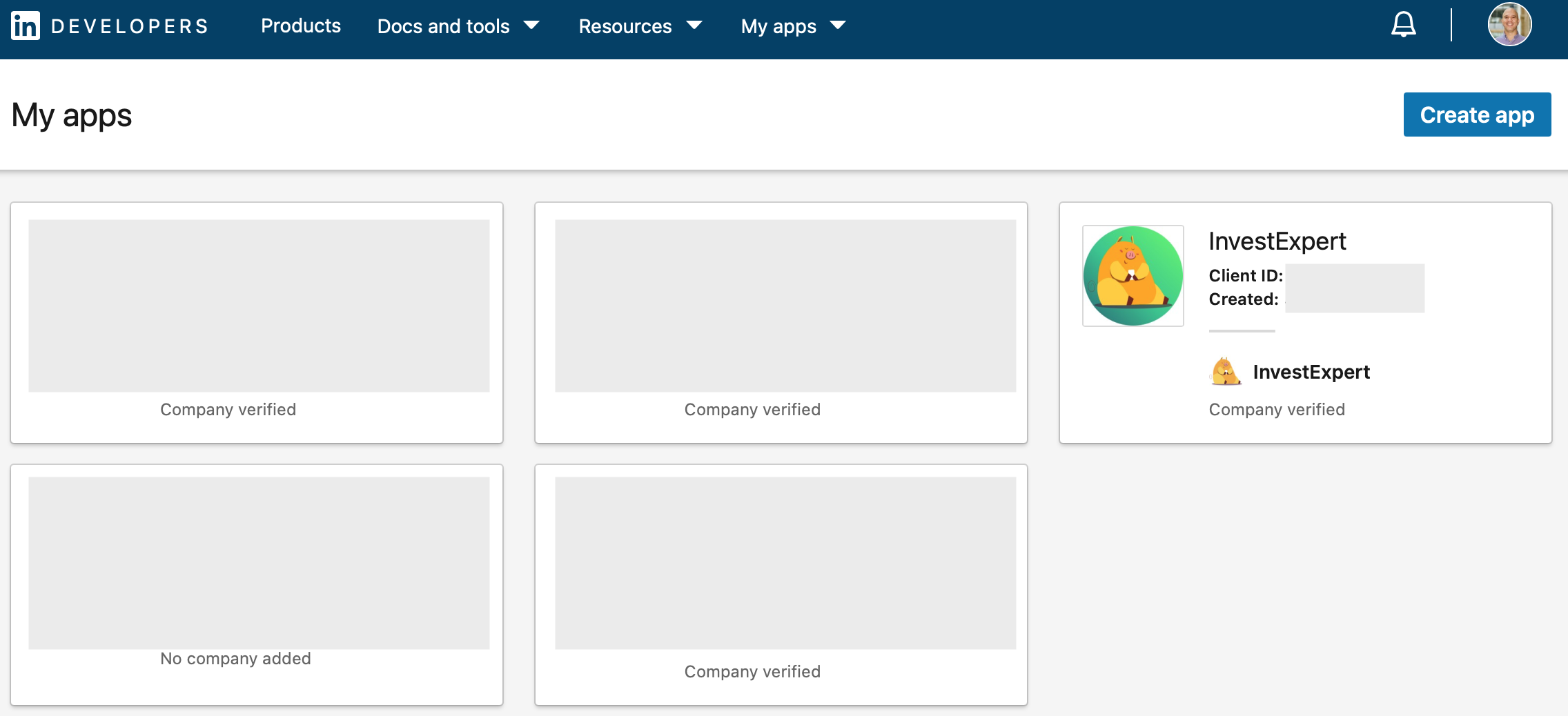 If creating an app, you will need a LinkedIn page to link the App. You can easily create one through LinkedIn if you do not have one.
Image for post
If creating an app, you will need a LinkedIn page to link the App. You can easily create one through LinkedIn if you do not have one.
Image for post
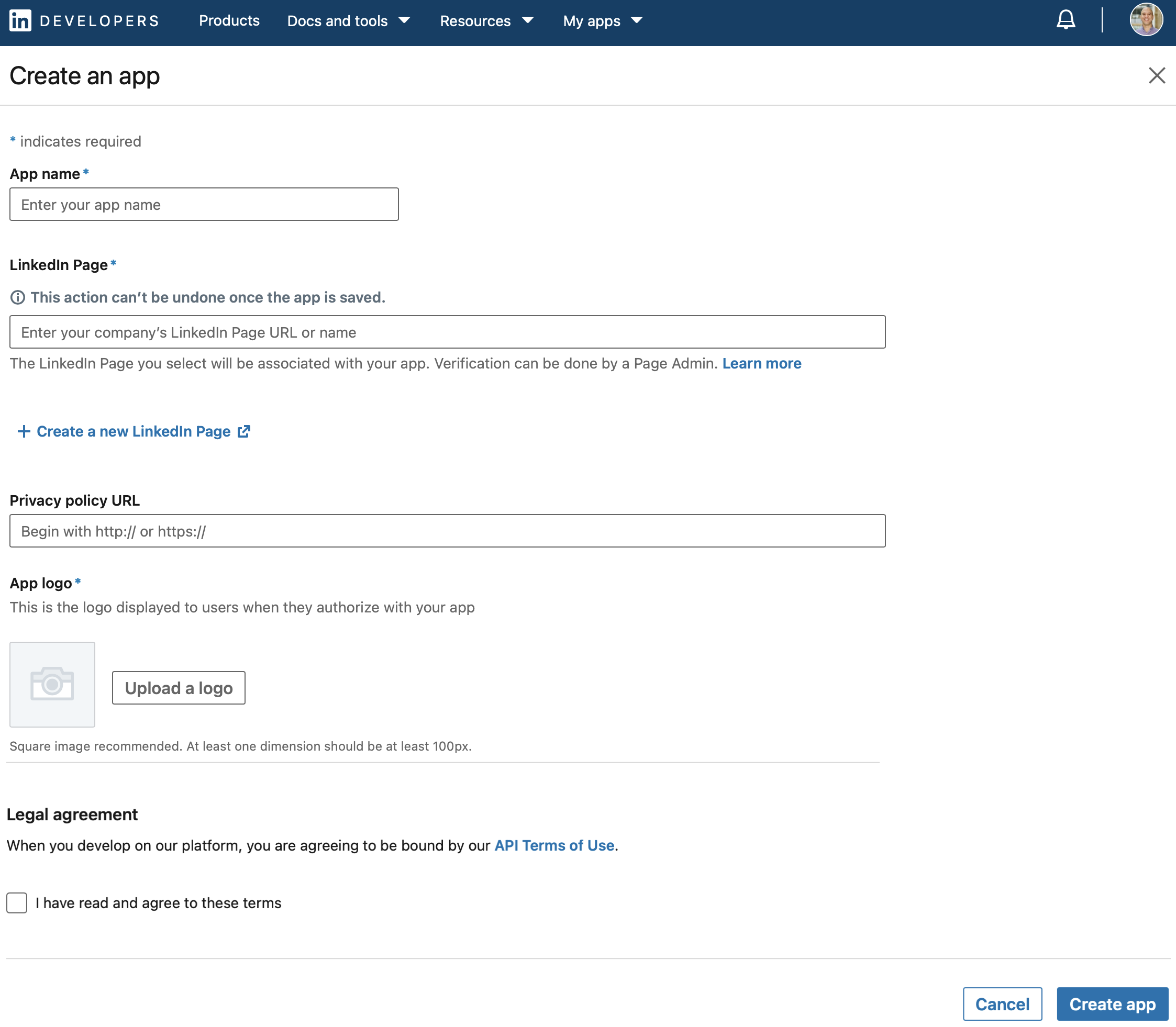
Verify your App
You should verify your App before moving to the next steps. Actually, without verifying, you won’t be able to move forward.
Get Your Client ID and Client Secret
Once you have your App ready, it’s time to get the Client ID and Client Secret. Click on the App from the dashboard and navigate to the Auth tab. Under Application credentials, the Client ID and Client Secret are present. These are needed for the LinkedIn API. Image for post
Enable the Sign In with LinkedIn
LinkedIn has made adding app permissions easier by defining them as products. Go on to the Products tab and click the select button on Sign In with LinkedIn. Image for post
After the Sign In with LinkedIn product is successfully added, your App’s OAuth 2.0 scopes will reflect the new permissions granted. Simply go to the Auth tab and scroll down to the bottom. Image for post
Getting a LinkedIn Access Token
You can do this through your browser or an application like Postman. If you decide to use Postman and have never used it before, you can get it on Postman’s official website. Now your turn, follow these steps:
- Create your Collection;
- Go to settings and select the Authorization tab.
- On the Type selector, select OAuth 2.0
- Add auth data to Request Headers.
- Go to Configure New Token, the bottom of the page.
- Token Name {Whatever you named}
- Grant Type: Authorization Code
- Auth URL: https://www.linkedin.com/oauth/v2/authorization
- Access Token URL: https://www.linkedin.com/oauth/v2/accessToken
- Client ID: {the Client Id on the LinkedIn App, tab Auth}
- Client Secret: {on the LinkedIn App, tab Auth, Application keys}
- Scope: remailaddress rliteprofile (based on the App LinkedIn Authorization)
- State {anything, I used something unique like DCEeFWf45A53sdfKef424}
- Click on Get New Access Token Button
And that is it. No, no, no, no… bead with me a few more steps.
After you click the Get New Access Token Button, a browser window will open up asking for your LinkedIn credentials. Follows the steps presented in the browser to get your Token in your Postman collection as a result. Follow the page below: Step 15: Image for post Step16: Image for post
Is it working? Let’s Make sure that it is working.
Inside your collection, create three GET calls to test if your sign-in with LinkedIn is working.
- Member Profile: https://api.linkedin.com/v2/me
- Member Profile Picture: https://api.linkedin.com/v2/me?projection=(id,firstName,lastName,profilePicture(displayImage~:playableStreams))
- Member Email Address: https://api.linkedin.com/v2/emailAddress?q=members&projection=(elements*(handle~))
Remember to set the Authorization for each GET as Inherit auth from parent. There are many other APIs you can call using your access token. Check out what LinkedIn has to offer in their documentation here.
You can check my final result on my Postman requests in the shared folder I created as part of this tutorial.
You are done. Happy coding!
Congratulations on setting up your LinkedIn application and access token, and I hope you found the article helpful with getting you ready to use the LinkedIn API.
Notes
- LinkedIn’s own Authenticating with OAuth2 contains an overview of how to get authenticated.
- LinkedIn access tokens now require LinkedIn Developer Enterprise access. Due to this change, we will primarily focus on the Sign In with LinkedIn app permission.
- Marketing Developer Platform requires a request form to be submitted while Sign In with LinkedIn and Share on LinkedIn will approve within a matter of seconds.
- Access Token needs to be renewed every 60 days.